Add classes and sections
Create academic or non-academic classes and add sections, so you can take enrolments and assign teachers.
Classes are the groups children belong to. Starkid has two kinds: Academic (year-long, like LKG/UKG) and Non Academic (short programs like sports, music, arts, or daycare).
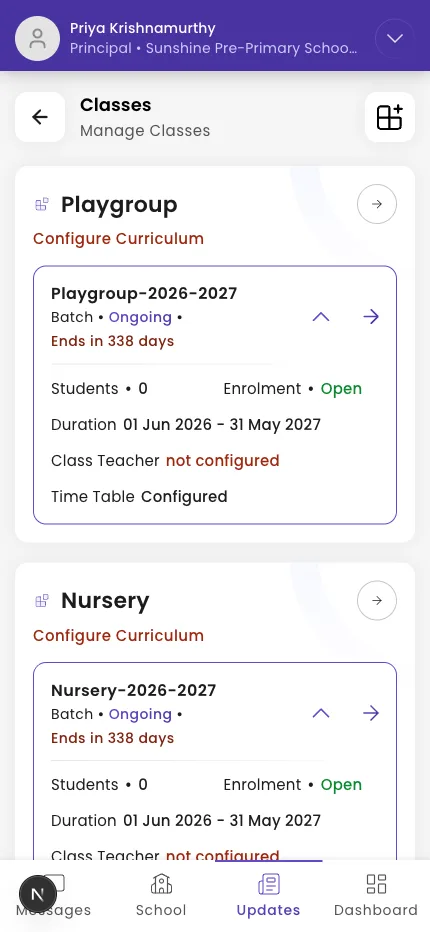
Create a class
- Go to Classes and start a new class.
- Under Select Class Type, choose Academic or Non Academic.
- Enter the class name under Enter Class name — keep it short ("Avoid words like 'Class' or 'Batch'").
- For an academic class, set the Age Group (the eligible age range).
- Save the class.
Important: "This cannot be changed later once the class is created" — pick the right class type first.
Add sections (academic classes)
- Open the class's batch and tap Add Section. The first one is named Section A automatically.
- For more, tap Add Another Section → Create Section (it auto-names B, C, …). "You can rename this later."
- Set each section's Capacity (the maximum number of students).
What if it doesn't work?
- You can't add a class. Only admins manage classes. Ask an admin for access — see Grant admin access.
- A section is full. Increase its Capacity or add another section.
Was this helpful?
Related articles
Last updated 2026-06-26