Set up the monthly curriculum
Plan a class's curriculum month by month — theme colour, academic theme, and weekly topics.
A class's curriculum is planned by month and is the same every year, so you set it up once per class. (Admins edit it; teachers can view it.)
Steps
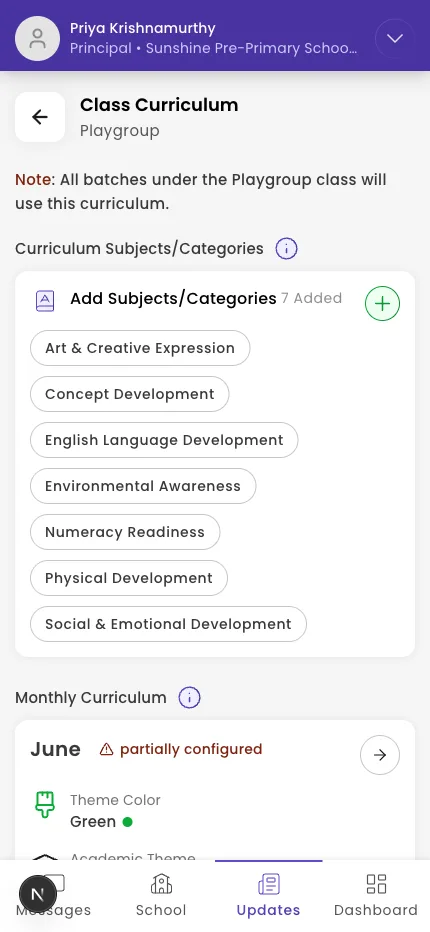
- Open the class and go to Class Curriculum.
- Under Monthly Curriculum, you'll see a card for each month, marked Configured, Partially configured, or Not configured.
- Tap a month to open its plan (for example, June Curriculum).
- Set the Theme Color and the Academic Theme.
- Under Configure all 4 weeks, open a week and use Add topic under each subject.
Tip: Because the curriculum is keyed by month (not by year), what you set up carries over to the next academic year — no need to re-enter it.
What if it doesn't work?
- You can only view, not edit. Editing the curriculum is for admins. Ask an admin, or get admin access.
- A subject is missing. Add the subject to the class first, then add topics under it.
Was this helpful?
Related articles
Last updated 2026-06-26