Manage your notifications
Turn Starkid alerts on or off in App Settings, and tidy up your notifications list.
Notifications tell you the moment your school posts an update, sends a message, or marks attendance. You control them in App Settings.
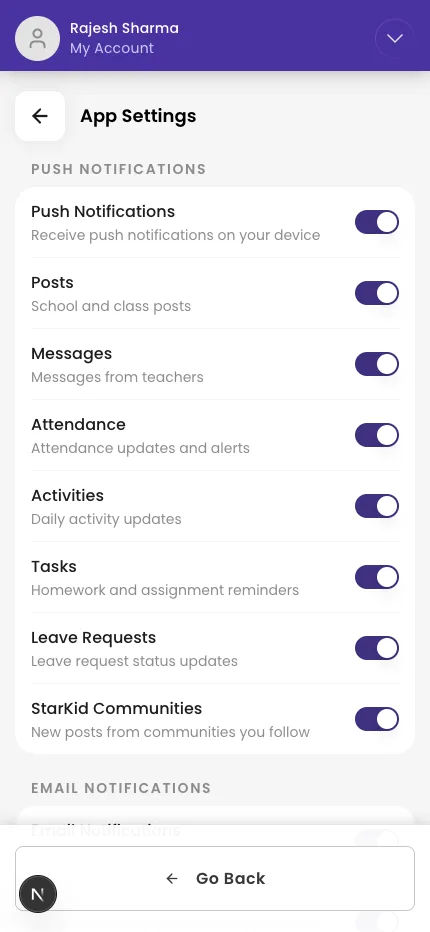
Choose which alerts you get
- Open the Profiles tab and tap Settings.
- Tap App Settings.
- Turn on Push Notifications, then choose the types you want: Posts, Messages, Attendance, Activities, Tasks, Leave Requests, and Starkid Communities.
- To get emails too, turn on Email Notifications (and Weekly Summary).
Tidy up your notifications
On the Notifications screen, open the manage menu to Mark all as read, Delete read notifications, or Delete all notifications.
Make sure your phone allows alerts
- iPhone: Settings → Notifications → Starkid Parent → Allow Notifications.
- Android: Settings → Apps → Starkid Parent → Notifications.
What if it doesn't work?
- No notifications at all. The usual cause is that alerts are blocked in your phone's settings — turn them on there first.
- Notifications stopped after changing phones. Log in again on the new phone so Starkid can reach your new device.
Was this helpful?
Related articles
Last updated 2026-06-26