Review admission requests
Approve, hold, or reject the admission requests parents send to enrol their children.
Students join your school when a parent sends an admission request from the Parent app. As an admin, you review each request and decide where the child is enrolled — you don't add students by hand.
Steps
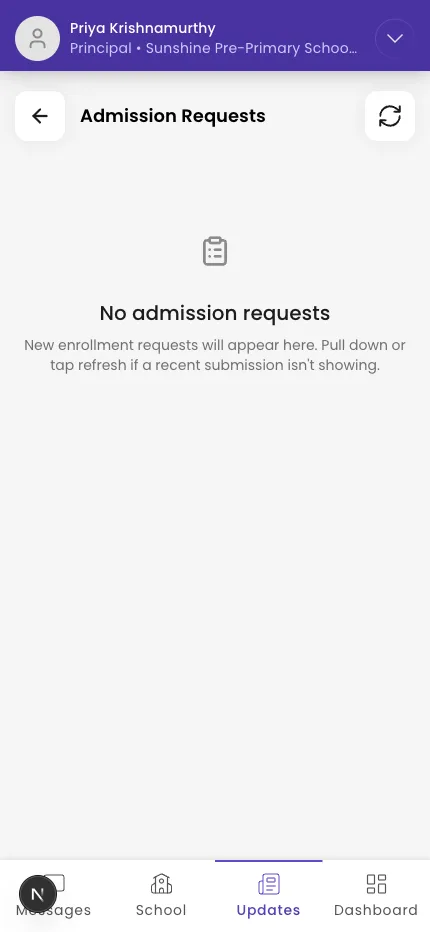
- Open Admission Requests.
- Tap a request to open it, then choose Take action on this request → Select an option:
- Approve — pick the class and section to enrol the child into.
- Approve and hold enrolment to class — accept the child but hold the section placement for now.
- Reject admission request — decline it.
- Confirm. The parent sees the result on their side.
Watch for duplicates: if Starkid shows a Possible Duplicate Student banner, the child may already be enrolled — review the match before approving so you don't create two records for one child.
What if it doesn't work?
- "Section is full." You'll be asked to confirm — tap Enrol anyway to go over capacity, or pick another section.
- "Admin access required." Only admins manage admission requests — ask an owner for admin access.
- A request isn't showing. Pull down to refresh; recent submissions can take a moment.
Was this helpful?
Related articles
Last updated 2026-06-26