Create a post or announcement
Share announcements, photos, audio, and more with parents, choose the audience and reactions, and publish or schedule.
Posts are how you share with parents. You pick a post type, add your content, choose who sees it, and publish.
Steps
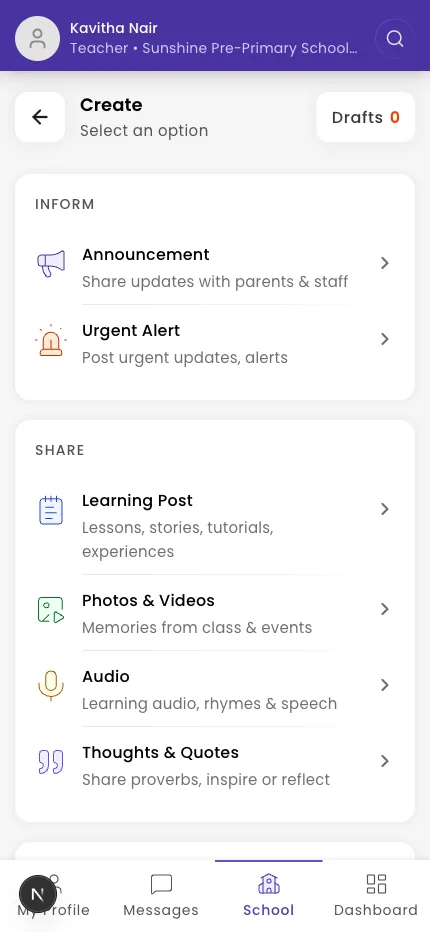
- Tap Create post (the +). The picker is titled Create — "Select an option."
- Choose a type from one of the three groups:
- INFORM: Announcement, Urgent Alert
- SHARE: Learning Post, Photos & Videos, Audio, Thoughts & Quotes
- PLAN: Event, Theme Color Day Event, Celebrations
- Fill in the Title and Description (optional), and add media (up to 5 files).
- Tap Next. Set the Audience (a class/section, All Parents & Staff, All Parents, or All Staff).
- Under Audience can, choose whether parents can Add Comment, Like it, and Love it.
- Under Scheduling options, pick Make live now or Schedule for later.
- Tap Preview, then Publish (or Submit for Review — see below).
Approval: Admins, and class teachers posting to their own section, publish straight away. A teacher posting outside their section sees Submit for Review — an admin approves it before it goes live.
What if it doesn't work?
- You only see "Submit for Review." That post needs admin approval because of its audience — that's expected.
- A photo or audio won't upload. Use a smaller file and check your connection.
- You're not finished. Your work is kept as a draft — reopen it from the drafts pill.
Was this helpful?
Related articles
Last updated 2026-06-26